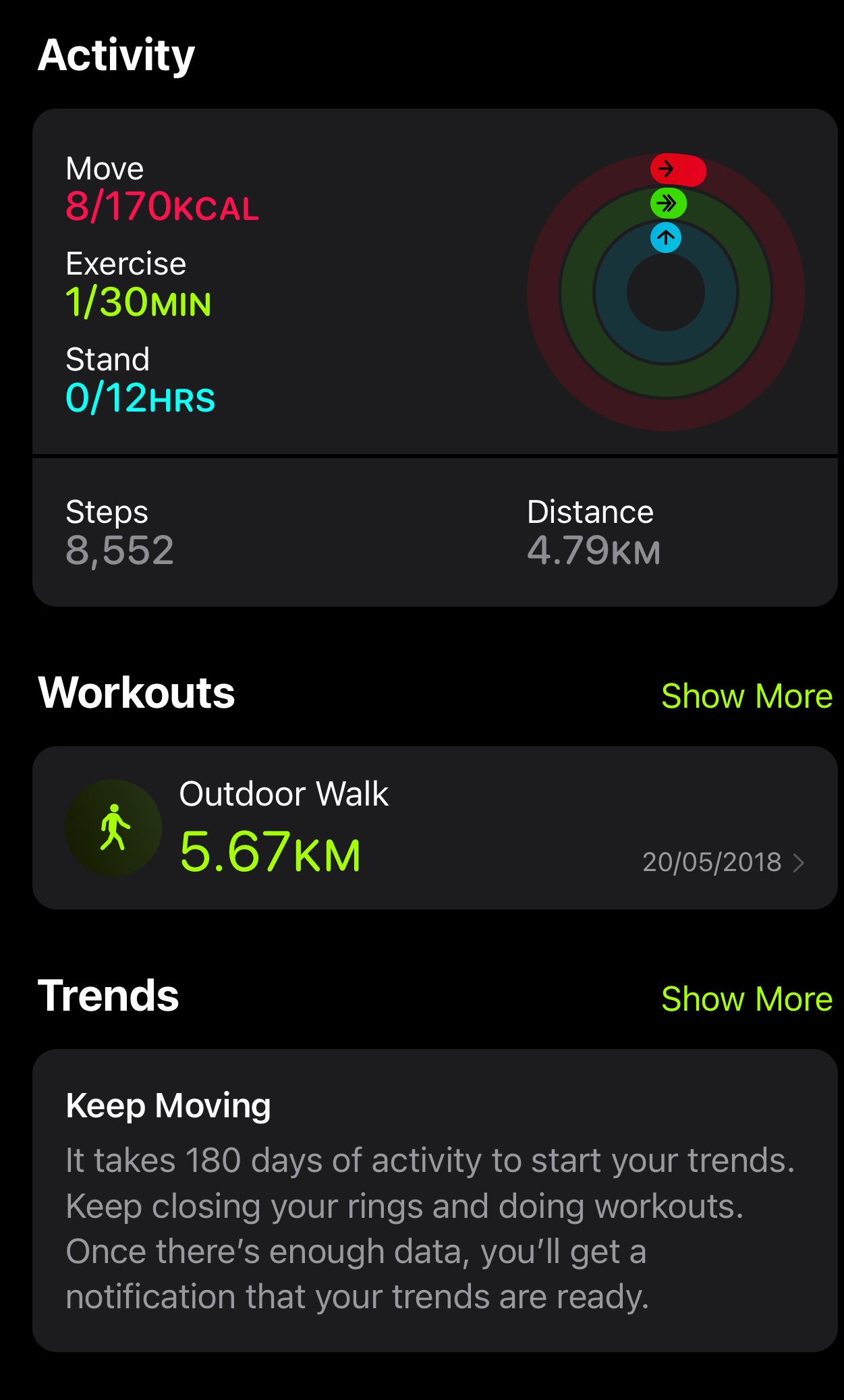
Are you frustrated with your Apple Fitness app not tracking your steps as it should? You’re not alone.
Many users find themselves puzzled when their app doesn’t reflect their daily activity accurately. Imagine the disappointment of finishing your day, eager to review your progress, only to find that your steps haven’t been logged. It’s like working hard and not getting the recognition you deserve.
But don’t worry—this isn’t just a glitch; there are specific reasons why this might be happening. Understanding these can help you get back on track, literally and figuratively. Dive into this article to uncover the common culprits behind this issue and discover easy solutions that can get your app counting every step you take. Your fitness journey deserves to be recorded flawlessly, and we’re here to help make sure it does.
Credit: discussions.apple.com
Common Issues With Apple Fitness App
Are you frustrated with your Apple Fitness App not tracking your steps accurately? You’re not alone. Many users face challenges with this app, and understanding these common issues can help you troubleshoot and improve your experience. Let’s dive into some frequent problems and how you might tackle them.
Inaccurate Step Count
Imagine going for a brisk walk, expecting to see a satisfying step count, only to find your app has barely recorded anything. This discrepancy often arises from sensor misalignment or incorrect settings. Ensure your device is securely attached and adjust your settings to match your activity. Sometimes, simply recalibrating your motion data can resolve these inaccuracies.
Syncing Problems
Syncing issues can be a real headache. You might find that your Apple Fitness app isn’t updating with the latest data from your iPhone or Apple Watch. These problems often stem from connectivity issues. Check your Bluetooth and Wi-Fi connections, ensuring both devices are on the same network. Restarting your devices can often clear up these sync problems.
Software Glitches
Software glitches can disrupt your fitness tracking. These might include sudden app crashes or unresponsive features. Updating your app and device software can sometimes fix these bugs. Regular updates not only enhance performance but also introduce new features that improve tracking accuracy.
Have you checked if your app is running the latest version? Ensuring your software is up-to-date can prevent many issues before they occur. So, next time you’re struggling with your fitness app, consider these common issues and simple solutions. Could these fixes be the key to accurate tracking and a seamless fitness journey?
Credit: www.iphonelife.com
Device Compatibility
Device compatibility plays a crucial role in tracking steps using the Apple Fitness app. Understanding which devices support this feature can help solve tracking issues. Let’s explore the specific requirements for device compatibility.
Supported Devices
The Apple Fitness app works on iPhones and Apple Watches. Not all models are compatible. The iPhone 5s and newer models support the app. For Apple Watches, the Series 1 and later are compatible. Ensure your device matches these specifications.
Ios Version Requirements
iOS version also affects the app’s performance. The Apple Fitness app requires iOS 14 or later. Older iOS versions might not support step tracking. Check your device’s software version. Update if necessary. This ensures smooth functionality.
Ensuring Proper Settings
Is your Apple Fitness app not tracking steps? Proper settings can help. Ensuring the right settings is key to accurate step tracking. Make sure all necessary permissions are enabled. Let’s explore what you need to check.
Location Services
Location Services must be active for precise tracking. Go to Settings on your device. Find Privacy, then tap on Location Services. Ensure it’s switched on. This setting allows your device to track your movements. Without it, the app won’t record steps accurately.
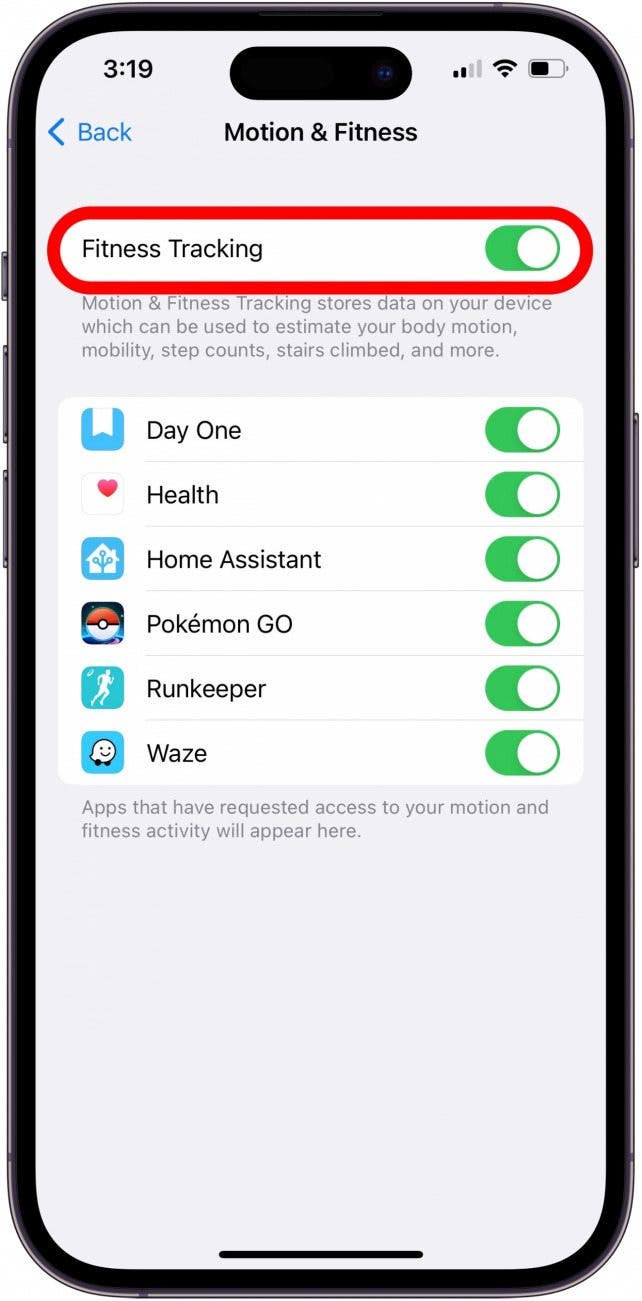
Motion And Fitness Access
Motion and Fitness Access is crucial. Check this in your device settings. Open the Privacy menu and locate Motion & Fitness. Ensure access is enabled for the app. This permission lets the app track physical activity. Without it, your steps remain untracked. Make sure the toggle is green.

Credit: www.reddit.com
Troubleshooting Steps
Experiencing issues with your Apple Fitness app not tracking steps? Ensure your device’s motion settings are enabled. Check for software updates and restart your iPhone or Apple Watch. If problems persist, consider reinstalling the app for a fresh start. Stay active with accurate step tracking.
Experiencing problems with the Apple Fitness App can be frustrating. Sometimes, the app doesn’t track your steps accurately. Before you panic, there are simple troubleshooting steps to follow. These steps can often resolve the issue quickly. Let’s explore some easy fixes.Restarting The Device
Restarting can solve many tech issues. Turn off your iPhone completely. Wait for a few seconds. Then, turn it back on. This simple action can reset your app’s connection. Often, this resolves the step tracking problem.Reinstalling The App
Reinstalling the app is another effective solution. First, delete the Apple Fitness App. Go to the App Store and search for it. Download and install it again. This can refresh the app’s settings. A fresh install often fixes tracking issues.Resetting Network Settings
Network settings can affect your app’s performance. Go to the “Settings” menu on your device. Tap on “General,” then “Reset.” Choose “Reset Network Settings.” This step will clear network glitches. Reconnect to your Wi-Fi network afterward. This might help in resolving tracking issues.Checking Sensor Functionality
Experiencing issues with your Apple Fitness app not tracking steps? Checking sensor functionality could be the key to resolving this problem. Sensors play a crucial role in tracking accurate fitness data. Ensuring they are working properly can help restore step tracking.
Calibrating Motion Sensors
Motion sensors detect your movements accurately. Calibrate them for precise tracking. Walk naturally while carrying your iPhone to calibrate. This helps the sensors learn your movement patterns better. Regular calibration ensures consistent tracking.
Testing Gps Accuracy
GPS tracks your location when walking or running. Test its accuracy by checking your location settings. Ensure GPS is enabled on your device. Move outdoors for a clearer signal. A strong GPS signal improves tracking precision. This aids in recording your steps accurately.
App And System Updates
Keeping your Apple Fitness app up-to-date is crucial for accurate step tracking. Updates ensure the app runs smoothly and benefits from the latest features. Regular updates can fix bugs that may cause tracking issues. Let’s explore the importance of app and system updates.
Installing Latest Updates
Always check for the latest updates for your Apple Fitness app. Developers release updates to improve performance and fix known issues. Go to the App Store to see if an update is available. Keeping your app updated ensures optimal functionality.
Bug Fixes And Improvements
Updates often include bug fixes and improvements that enhance the app’s performance. Developers address common problems users face, like step tracking errors. Updating the app may resolve these issues and improve accuracy. Stay informed about the latest changes and improvements.
Battery Optimization Settings
Apple Fitness App might not track steps due to battery optimization settings. These settings can restrict background activity. Adjust them to ensure accurate step tracking.
When your Apple Fitness app isn’t tracking your steps, the culprit might be the battery optimization settings on your device. These settings are designed to extend your phone’s battery life, but they can also interfere with apps that require continuous tracking. Imagine going for a brisk walk, only to find out your steps weren’t counted because of these settings. Frustrating, right? Let’s explore how you can adjust these settings to keep your fitness journey on track.Disabling Low Power Mode
Low Power Mode is a useful feature when you’re running low on battery, but it can limit your app’s functionality. When activated, it reduces background activity, which means your Apple Fitness app might not update your steps in real-time. To disable Low Power Mode, go to Settings > Battery and toggle off the Low Power Mode option. This simple action can make a big difference in ensuring your steps are accurately tracked. Have you ever noticed your phone slowing down in Low Power Mode? That’s because it pauses unnecessary processes, but it can also pause the ones you need. By disabling it, you ensure your fitness goals aren’t paused with it.Managing Background App Refresh
Background App Refresh allows apps to update their content even when you’re not using them. This is crucial for apps like Apple Fitness that need to track your movement continuously. To manage this setting, head to Settings > General > Background App Refresh and ensure it’s enabled for the Fitness app. Select either Wi-Fi or Wi-Fi & Cellular Data to allow the app to refresh as needed. Consider how often your apps refresh information without you even noticing. Allowing the Apple Fitness app to do this ensures you get real-time updates on your activity. It’s like giving your app a little nudge to keep it active and accurate. Have you checked your settings lately? A quick peek can save you from the disappointment of missing out on your step count. Make these adjustments and watch your fitness data become more reliable and actionable.Alternative Fitness Tracking Options
Discovering that your Apple Fitness app isn’t tracking steps can be frustrating. But don’t worry! You have plenty of alternative fitness tracking options at your disposal to ensure your fitness journey stays on track. These options can often provide a richer set of features than your standard app, helping you stay motivated and engaged.
Third-party Apps
Third-party apps can be a game changer. They’re often packed with extra features that can tailor your fitness experience to your needs. Popular apps like MyFitnessPal or Strava not only track steps but also offer nutritional guidance and community challenges. They can sync with most phones and offer a seamless experience with user-friendly interfaces. Have you tried exploring an app that matches your fitness goals?
Wearable Devices
Wearable devices are another excellent option. From smartwatches to fitness bands, these gadgets are designed to track your activity with precision. They offer real-time stats and can be worn all day without interfering with your routine. Brands like Fitbit and Garmin have established themselves as leaders in this space. Imagine how a simple wristband can transform your fitness journey by offering detailed insights into your daily activity. Wouldn’t it be great to have your data accessible anytime?
Whether you’re choosing apps or wearables, the key is to find something that aligns with your lifestyle and preferences. You’ll not only keep track of your steps but also potentially discover new ways to enhance your overall health and fitness. What new insights could you gain from switching up your tracking method?
Frequently Asked Questions
How Do I Get Apple Fitness To Track My Steps?
Enable step tracking on your iPhone in the Health app. Sync Apple Fitness with the Health app. Ensure your Apple Watch or iPhone is worn to track steps accurately. Open the Fitness app to view your step count.
Why Is Apple Fitness Not Working?
Apple Fitness may not work due to outdated software. Check for updates and ensure your device is compatible. Poor internet connection can also cause issues; try reconnecting to Wi-Fi. If problems persist, restart your device or contact Apple Support for assistance.
Why Isn’t My Fit App Showing Steps?
Ensure your Fit app has necessary permissions enabled to track steps. Check for app updates or reinstall. Verify device’s sensors are working properly. Restart your phone or wearable device. Contact support for further assistance if issues persist.
Why Is My Fitness Watch Not Counting My Steps?
Ensure your fitness watch is charged and worn correctly. Check the step-tracking settings and update the software. Make sure Bluetooth is enabled for syncing. Reset the device if issues persist.
Conclusion
Fixing your Apple Fitness app can be simple. Start with checking settings. Ensure location services are on. Restart your device if needed. Update the app regularly for best performance. Sometimes, uninstalling and reinstalling helps. Contact Apple Support if issues persist.
They offer guidance and solutions. Don’t forget to sync your data. Use Wi-Fi for faster updates. Keep your device charged for uninterrupted tracking. Regular maintenance improves app accuracy. Stay active and enjoy seamless step tracking. Troubleshooting can enhance your fitness experience.
Remember, technology sometimes needs a little tweak. Stay patient and informed.