Have you ever wondered how to streamline your fitness tracking and get the most out of your Apple Health app? If you’re looking to enhance your fitness journey and ensure all your health data is in one place, you’re in the right spot.
Connecting Apple Health to your fitness app is like having a personal health assistant that works around the clock. Imagine having your workouts, nutrition, sleep, and more all synchronized, offering you a comprehensive view of your health journey. This guide will walk you through the seamless process of connecting these apps, helping you unlock potential you never knew you had.
Keep reading to discover how easy it is to integrate your fitness routine with Apple Health and take a significant step towards achieving your wellness goals.
Apple Health Overview
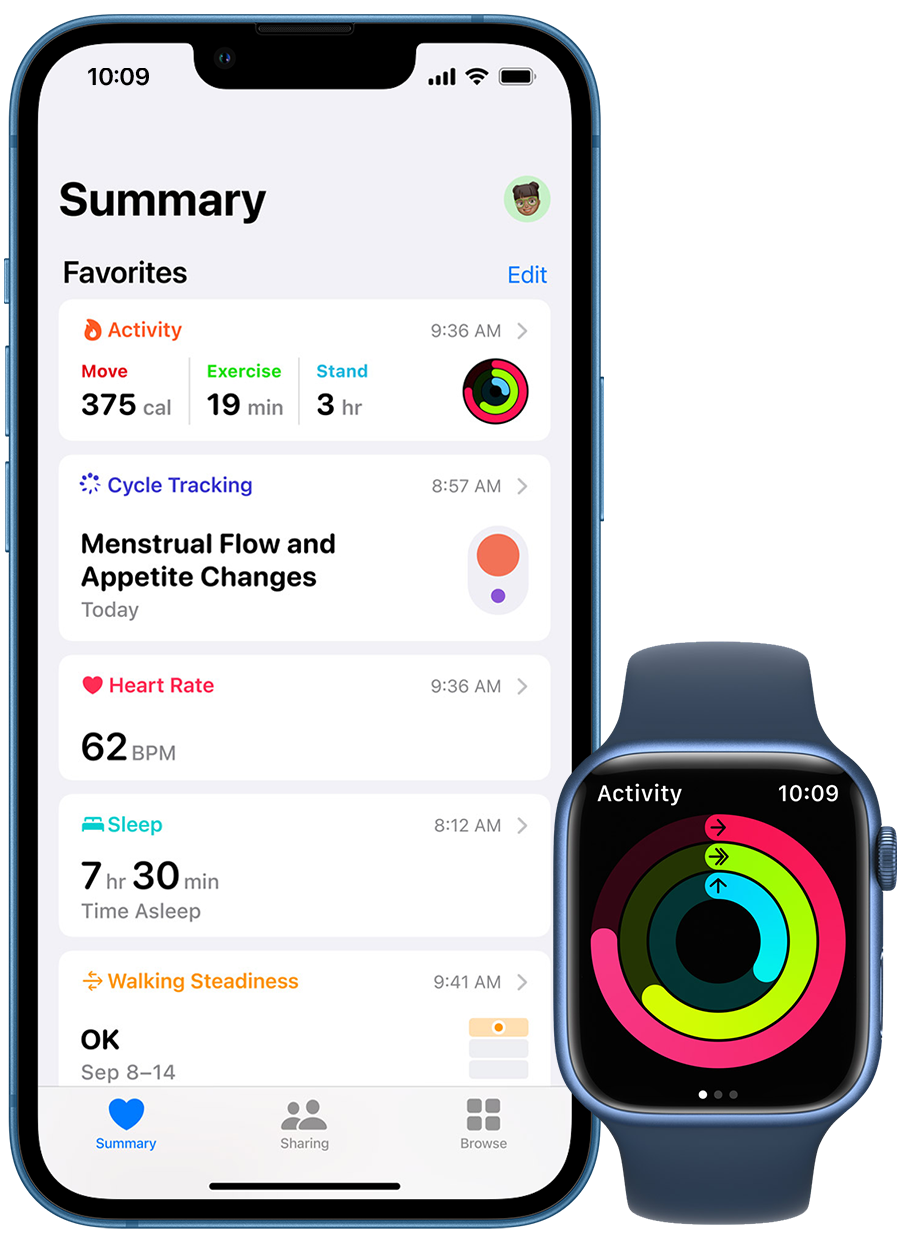
Apple Health is a powerful app on your iPhone. It collects health data from various sources. This includes your iPhone, Apple Watch, and third-party apps. All this information is stored in one place for easy access.
The app is designed to be user-friendly. It provides insights into your health and fitness journey. You can track steps, heart rate, and more. Health data is available at your fingertips.
What Apple Health Tracks
Apple Health tracks many health metrics. This includes physical activities like walking or running. It also tracks sleep patterns and heart rate. You can also monitor nutrition information and more.
Importance Of Apple Health
Apple Health plays a vital role in health management. It helps monitor daily activities and wellness. With its insights, you can make informed health decisions. It empowers users to stay proactive about their health.
Compatible Devices And Apps
Apple Health works with many devices. The Apple Watch is a key device for tracking data. Many third-party fitness apps are compatible too. This ensures a seamless experience for users.
Benefits Of Using Apple Health
Using Apple Health has many benefits. It offers a centralized location for health data. Users can easily track progress over time. The app encourages a healthy lifestyle and goal setting.
Fitness Apps Compatibility
Connecting Apple Health with a fitness app offers seamless tracking. Many fitness apps now support integration with Apple Health. This compatibility simplifies health monitoring. Users can easily sync data between devices. This ensures comprehensive health insights. Let’s explore which apps work with Apple Health.
Compatibility is key for integrating Apple Health. Numerous apps link smoothly with Apple Health. These apps help track workouts, nutrition, and more. They collect data efficiently and offer personalized feedback.
Which Apps Work With Apple Health?
Popular fitness apps connect to Apple Health. Apps like MyFitnessPal, Strava, and Nike Training Club are compatible. They offer diverse features and sync data easily. Users can track steps, calories, and exercises. This integration enhances the user experience.
How Integration Benefits Users
Linking fitness apps with Apple Health simplifies health tracking. Users see all their data in one place. This helps monitor progress effectively. The integration offers personalized recommendations. It supports better health management.
Steps To Connect Your App
Connecting is simple and quick. Open the Apple Health app. Tap the profile icon. Choose “Apps” under “Data Sources & Access.” Select the fitness app to connect. Enable data sharing by toggling switches. Follow these steps for seamless integration.
Common Issues And Solutions
Sometimes apps fail to sync properly. Ensure both apps are updated. Check internet connection for stability. Restart devices if syncing issues persist. Clear cache for better performance. Follow these steps for smooth integration.
Setting Up Apple Health
Apple Health provides a comprehensive way to track your health data. Connecting it to your fitness app enhances your health monitoring. This setup ensures seamless data synchronization.
Setting up Apple Health involves a few simple steps. First, ensure your device is compatible. Then, install the necessary apps. Finally, connect Apple Health to your fitness app.
Device Requirements
Apple Health requires an iPhone or iPod Touch. The device should run iOS 8 or later. Ensure your device is updated for optimal performance. An Apple Watch can enhance data tracking.
Having enough storage on your device is crucial. This ensures smooth operation of Apple Health. Check your device’s storage settings regularly.
App Installation
First, open the App Store on your device. Search for the Apple Health app. Tap ‘Get’ to download and install. The app is free to download.
Next, install your preferred fitness app. Ensure it supports Apple Health integration. Common apps include MyFitnessPal and Strava. Read app reviews for user experiences.
Syncing Apple Health With Fitness Apps
Easily connect your fitness app to Apple Health for seamless data tracking. Open your fitness app settings, find the Apple Health option, and enable data sharing. Enjoy integrated health insights right at your fingertips.
Syncing your Apple Health with fitness apps can be a game-changer for your health routine. Imagine having all your health data in one place, seamlessly updating without you lifting a finger. It’s not just about convenience; it’s about getting a comprehensive view of your health. When your fitness apps talk to Apple Health, you gain insights that can help you make smarter choices, set realistic goals, and track your progress effortlessly.Enabling Permissions
To start syncing Apple Health with your fitness apps, you need to enable permissions. Open the Apple Health app on your iPhone. Navigate to the ‘Sources’ tab, where you’ll see a list of apps that can access your health data. Select the fitness app you want to sync with. Here, you’ll find a list of data categories that the app can read or write. Toggle the switches to grant the app permission to access the desired data. It’s like granting access to a friend who helps you keep track of your fitness journey.Data Categories To Sync
Decide which data categories you want to sync between Apple Health and your fitness app. Common categories include steps, workouts, heart rate, and calories burned. Think about what’s most important for your fitness goals. For instance, if you’re a runner, syncing your workout data can provide insights into your performance over time. If you’re more focused on heart health, syncing heart rate data can be crucial. Choose categories that align with your fitness objectives, ensuring you get the most out of the syncing process. Have you thought about how these data insights could transform your health habits? By syncing the right data, you create a feedback loop that motivates and informs your fitness journey. This isn’t just about numbers; it’s about understanding your body better.Troubleshooting Connection Issues
Connecting Apple Health to your fitness app can enhance your health tracking experience. Sometimes, issues arise during the connection process. These can disrupt data flow between the apps, affecting your tracking accuracy. Understanding common problems and resetting connections can help resolve these issues.
Common Problems
Many users face problems like data not syncing properly. Incorrect permissions can also cause issues. Make sure Apple Health is allowed to access all necessary data. Another common problem is outdated app versions. Always keep your apps up to date. This ensures compatibility and smooth functioning.
Resetting Connections
Resetting connections often solves sync problems. Start by disconnecting the app from Apple Health. Then, reconnect it following the app’s instructions. This refreshes the link between the two apps. Sometimes, restarting your device helps reset the connection. Always check if the problem persists after these steps. Regular resets maintain a stable connection.
Credit: support.virtuagym.com
Maximizing Apple Health Benefits
Apple Health offers a comprehensive way to manage your fitness journey. By connecting it to a fitness app, you can get more from your workouts. Apple Health gathers data from multiple sources and presents it in one place. This makes it easier to monitor and improve your health. Let’s explore how to maximize its benefits.
Setting Health Goals
Setting clear health goals is vital for progress. Start by defining what you want to achieve. Maybe you aim to walk 10,000 steps daily. Or perhaps you want to improve your sleep quality. Apple Health allows you to set specific goals for various activities. Tailor these goals to fit your lifestyle and needs. This keeps you motivated and focused.
Tracking Progress
Tracking progress helps you stay on course. Apple Health provides detailed insights into your daily activities. This includes steps taken, calories burned, and sleep patterns. Regularly check your stats to see how you’re doing. Adjust your efforts if necessary to meet your goals. Celebrate small victories to keep your spirits high.
Privacy And Data Security
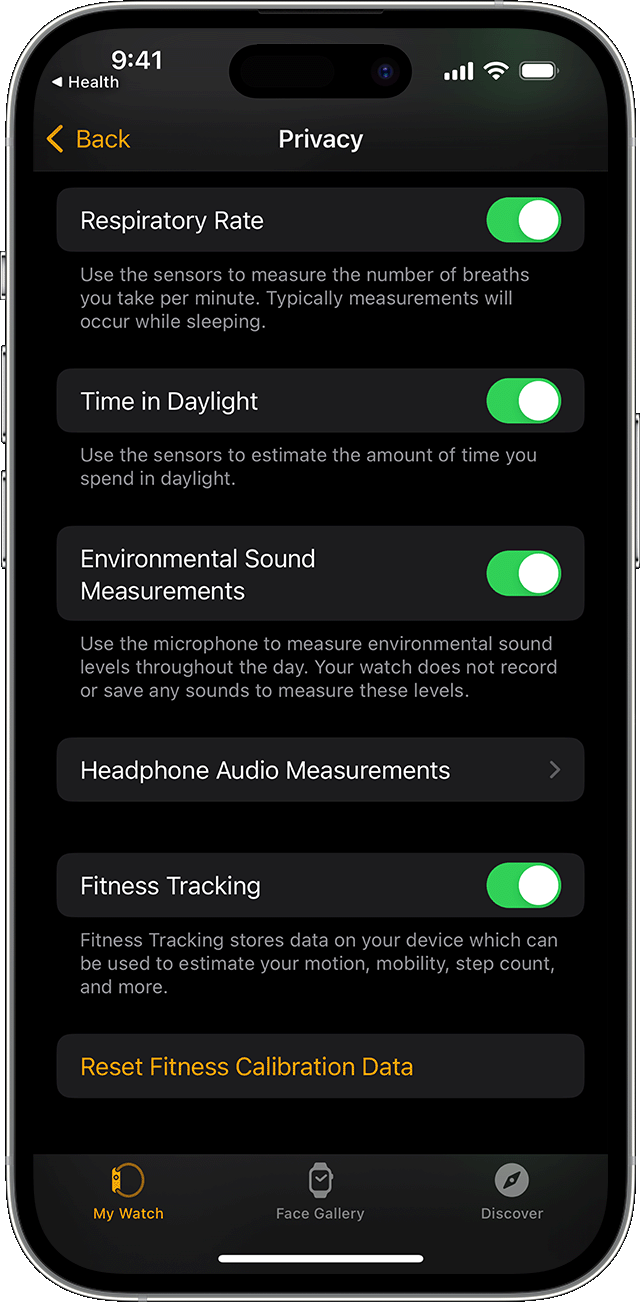
Privacy and data security are essential when connecting Apple Health to your fitness app. Users often worry about their personal information. Understanding how Apple Health handles data can ease these concerns. Apple ensures that your data is secure and private.
Data Sharing Options
Apple Health provides various data sharing options. You can decide which apps access your health data. Select specific categories to share. This control ensures your comfort with data sharing. Choose only trusted apps. Regularly review your permissions. This keeps you informed about data use.
Protecting Personal Information
Protecting your personal information is crucial. Apple Health uses end-to-end encryption. This means only you can access your data. Developers cannot see your health information. Apple also requires apps to have a privacy policy. Check these policies before allowing access. Ensure your data stays safe and secure.
Credit: support.virtuagym.com
Credit: support.apple.com
Frequently Asked Questions
How Do I Sync My Fitness App With Apple Health?
Open the Fitness app and navigate to settings. Select “Connect to Apple Health. ” Grant necessary permissions to sync data.
How Do I Add Steps From The Health App To The Fitness App?
Open the Health app and enable step tracking. Sync it with the Fitness app through Settings. Ensure both apps have necessary permissions. Check your Fitness app for updated step data.
How To Use Apple Health And Fitness Apps?
Open the Health app on your iPhone. Track your activities, set goals, and monitor progress. Use the Fitness app to follow workouts and measure performance. Sync data with Apple Watch for more detailed insights. Customize settings to focus on specific health metrics.
How Do I Add A Workout To My Health App Or Apple Fitness App?
Open the Health or Apple Fitness app. Tap “Add Data” or “Workouts. ” Select activity type. Enter details. Save.
Conclusion
Connecting Apple Health to your fitness app is simple and beneficial. You gain a complete view of your health data. This seamless integration helps track progress effectively. Just follow the steps outlined in this guide. Your fitness journey becomes more organized and insightful.
Syncing these apps saves time and boosts motivation. Now, you can focus on reaching your fitness goals. Enjoy a healthier lifestyle with this tech advantage. Stay consistent, monitor your progress, and watch your health improve. Remember, every small step counts towards a healthier you.
Happy tracking!